After configuration is complete, you can start kiln monitoring. Monitoring can be started only on the IRT KilnMonitor server.
Monitoring stops when the IRT KilnMonitor server application is closed. |
Start-up screen
On the Start-up screen, you can start or stop monitoring for all kilns by selecting Monitoring / Start Monitoring All Kilns or Monitoring / Stop Monitoring All Kilns from the main menu.
When you click the Monitor button, IRT KilnMonitor opens the monitoring window but does not start monitoring.
Monitoring window
When the monitoring window is open, you can start or stop monitoring for the selected kiln by selecting Monitoring / Start Kiln Monitoring or Monitoring / Stop Kiln Monitoring from the main menu.
You can also use the corresponding buttons on the toolbar: 
 .
Kiln maintenance mode
You can monitor a kiln in maintenance mode. In this mode, all alarm checks are suspended.
Use maintenance mode when the kiln is not running under normal operating conditions, for example:
·The kiln is running without load.
·The kiln is starting up or stopping and has not yet reached normal speed.
·The kiln is heating up.
·The kiln is cooling down.
·Other conditions are present in which normal alarm evaluation is not required.
When monitoring is running in maintenance mode:
·Alarms are not evaluated, and alarm I/O is reset.
·Control signals are reset.
·Refractory thickness is not calculated or updated.
·History is not recorded.
·Temperature trends are not updated.
To turn on maintenance mode, select Monitoring / Maintenance Mode from the main menu, and then configure the mode in the Maintenance Mode dialog.
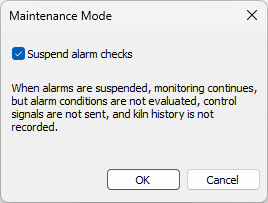
When monitoring is running in maintenance mode, a blinking label is displayed on the toolbar:

To switch to normal monitoring mode, click the label and clear the Suspend alarm checks option in the Maintenance Mode dialog.
Automatically start monitoring when application starts
You can configure IRT KilnMonitor to start monitoring all kilns automatically when the application starts. Configure this option in the Settings dialog.