A report template is a Word document that defines the layout and report data to include in a generated report. Add report elements from the Thermo Reports tab. In a template, these elements define where data appears; report generation replaces their placeholder content with data from the reported images. For instructions on working with report elements, see Creating reports manually.
Understand template sections
Word sections determine which template content IRT Cronista repeats:
·A data section contains at least one Infrared Image placeholder. During report generation, IRT Cronista creates a populated copy of a suitable data section for each reported image or image stack.
·A static section does not contain an Infrared Image placeholder. It appears once and can contain a cover page, introductory or closing information, a summary table, or signatures.
For instructions on dividing a document into Word sections, see Organize images in report sections.
A standard template normally uses a single data-section layout containing one or more Infrared Image placeholders. A template without any Infrared Image placeholders simply produces an unchanged copy of the template and therefore has no practical use for exporting thermography data.
For templates that report image stacks or use several data sections with different numbers of infrared-image placeholders, see Report templates for image stacks.
Build the template structure
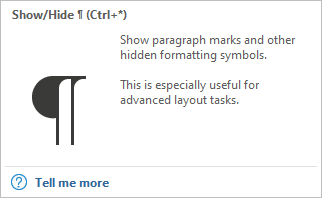
1.On the Word Home tab, select Show/Hide ¶ to display section breaks and other formatting marks.
2.Insert Word section breaks to separate the static and data sections.
A section break appears as follows when formatting marks are visible:

3.Insert an Infrared Image placeholder first in every data section.
4.Add the required related pictures, graphs, fields, and tables to each section.
5.Set Source IR image for related elements when a data section contains multiple infrared-image placeholders.
6.Place the summary table in a static section.
7.Use Word tables to align elements that must remain together when data sections are repeated.
8.Keep picture and graph placeholders In Line with Text for predictable placement.
9.Save the template.
Tip: Use borderless Word tables where they help stabilize the layout. You do not need to place the entire page in one table. |