Use Same Range and Same Palette to apply shared display settings to all infrared images in the current folder. The options work independently: you can share the range settings, the palette settings, or both.
When either check box is cleared, changes to the corresponding settings affect only the focused image, even if multiple images are selected. Selecting several images does not apply those changes to the entire selection.
Both check boxes are in the Temperature Scale window. If the window is hidden, show it using View > Temperature Scale.
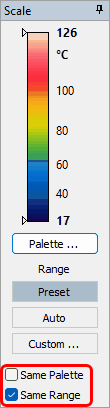
Same Range
Select Same Range to share the focused image's range settings. Subsequent range changes in the Temperature Scale window apply to the folder.
·Preset: Each image uses its camera-stored display range, with automatic limits as a fallback. The limits can differ between images.
·Auto: The program calculates limits separately from each image's histogram. The limits can differ between images.
·Custom: All images use the upper and lower limits specified in Custom Range.
Clear Same Range to restore each image's individual range settings. Further range changes then affect only the focused image.
Same Palette
Select Same Palette to share the focused image's palette settings. This includes the palette, color inversion, color steps, top and bottom isotherms and their custom colors, and the contrast-enhancement method where available.
Subsequent changes to these settings apply to all infrared images in the folder. Clear Same Palette to restore each image's individual palette settings. Further palette changes then affect only the focused image.
Note: The main Temperature Scale window applies each setting either to the focused image or to the whole folder, not to separate groups within the folder. If several groups need different settings, clear Same Range for different ranges, Same Palette for different palettes, or both. Select each group in turn and use Temp. Scale for Selection to apply its settings. See Changing range and palette for selected images. |
Compare images using shared settings
For a consistent basis for visual comparison:
1.Open the folder containing the images.
2.Click the image whose settings you want to use as a starting point to give it focus.
3.Select the Same Range check box.
4.Click Custom.
5.Enter the upper bound in Upper Limit.
6.Enter the lower bound in Lower Limit.
7.Click OK.
8.Select the Same Palette check box.
9.Open the Palette dialog.
10.If contrast-enhancement options are available, select No contrast enhancement.
11.Click OK.
Important: Colors are mapped from pixel temperature values, not raw detector values. A shared palette alone does not make colors comparable when the numeric range limits differ. Histogram-based contrast enhancement can also map temperatures to different colors in different images, even when the palette and limits are shared. Sharing Preset or Auto does not guarantee identical numeric limits: each image uses its own stored range or independently calculated limits. Use Custom to share the same numeric limits. |