Use the Preview window in Organizer mode to inspect the focused file or image. The window position depends on the selected layout; in the Dual layout, it appears at the top.
Show or hide Preview
Select Preview on the main toolbar or View > Preview to show or hide the window.

Preview items
Click a folder, file, or image in the Folder Contents window. The item becomes focused and appears in Preview.
If several images are selected, the focused image is the one displayed in Preview. Its appearance in Folder Contents does not distinguish it from the other selected images. Selection-based commands can apply to all selected images; the preview and its file information describe only the focused item.
|
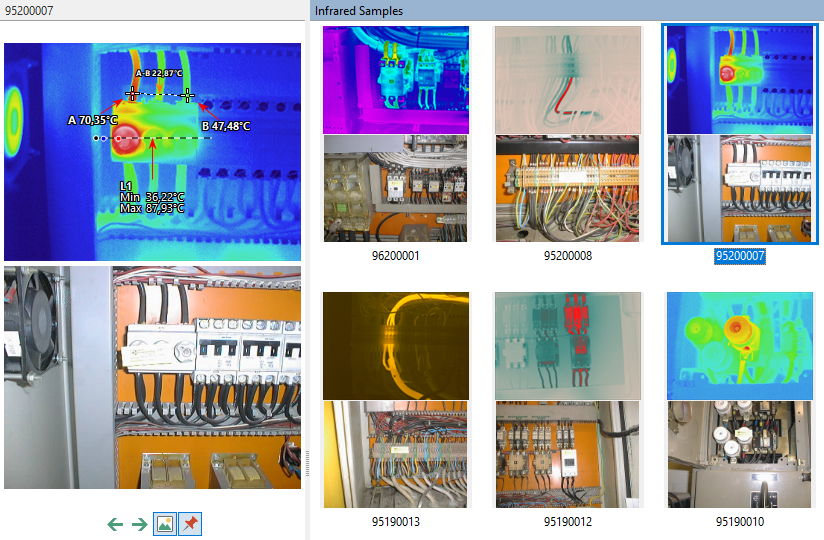
Use the arrow buttons below the previewed image  to display the previous or next image in the folder.
If a visual image is linked to the focused infrared image, Preview displays both images. Select  to hide the visual image. Select it again to show both images.
View file information and notations
The Infoview area below the previewed image contains the File Info and Notations tabs. To show this area, select View > Infoview.
File Info contains Image Info (parameters stored by the camera) and File Details (properties provided by the operating system). These include image dimensions, file name and location, capture time, and temperature parameters.
Notations displays notations and comments for the focused item. If the tab is empty, the current folder does not have a notations set. See Notations.
Select  below the previewed image to hide Infoview and enlarge the previewed image. Select it again to restore Infoview.