Use the Image Info dialog in IRT Cronista to change properties for selected infrared images or all infrared images in a folder. For example, you can apply the same emissivity, reflected temperature, or object distance to images captured under the same conditions.
Apply a common value only when it is appropriate for every image you include.
Open properties for selected images
1.Select at least two infrared images you want to change.
2.Right-click one of the selected images.
3.Select Image Info for Selection.
Open properties for a folder
1.Open the folder containing the images.
2.Open the Tools menu.
3.Select Image Info for Folder.
Edit and apply properties
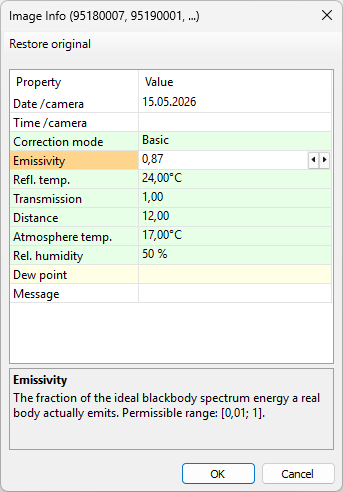
The dialog shows a value when the images share it. A blank field can indicate that the images have different values; it does not mean that the value is zero. Leave a field unchanged to keep each image's existing value.
1.Select the property you want to change.
2.Enter or select the new value.
3.Click OK to apply the edited values to the included images.
4.Save the modified images to write the changes to disk.
You can edit several properties before clicking OK. Only edited properties are applied. Click Cancel to discard the edits in the dialog.
Note: Temperature range and palette settings are changed separately. Use Temp. Scale for Selection for selected images. See Changing range and palette for selected images. |
Restore original values
Use Restore original to replace modified image parameters with their original recorded values. IRT Cronista restores each image's own values, not one common value for the group.
1.Click Restore original in the Image Info dialog.
2.Click Yes in the confirmation message.
3.Save the modified images.
The dialog closes after restoration. This action applies to all properties, not just the highlighted property.