Use copy and paste to link a visual image to its corresponding infrared image. The images can be in the same folder or in different folders.
To link a visual image to an infrared image: 1.Switch to Organizer mode. 2.Open the folder that contains the visual image. 3.Right-click the visual image. 4.Select Copy to keep the original visual image file, or Cut to move it when you complete the link. 5.If the infrared image is in a different folder, open that folder. 6.Right-click the infrared image you want to link to. 7.Select Paste from the image's shortcut menu to link the images. |
|
|
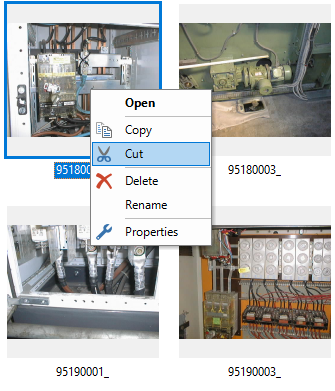
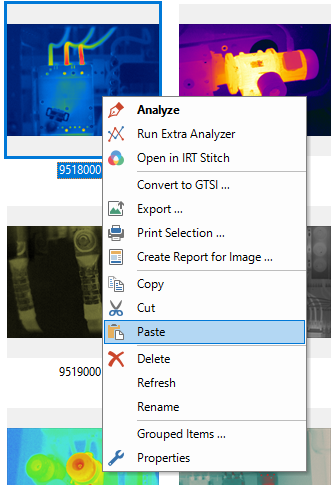
Notes: §Always copy or cut the visual image and paste it onto the infrared image, not the other way around. §For formats that store linked images as separate files, the linked visual image is stored in the infrared image's folder. Other formats can store the visual image within the infrared image file. §To use keyboard shortcuts, select the visual image and press Ctrl+C to copy or Ctrl+X to cut. Then select the infrared image and press Ctrl+G to paste and link. Ctrl+V pastes into the current folder, not onto the selected image. |