Use measurement parameters to account for surface and environmental conditions in temperature calculations. You can set parameters for an infrared image or an individual measurement object, reuse temperature-calculation parameters with parameter sets, and apply averaging or a temperature offset to measurement objects.
Temperature-calculation parameters
Temperature-calculation parameters include emissivity, reflected temperature, transmission, and any other parameters supported by the infrared image. Emissivity is the ratio of energy emitted by a real surface to energy emitted by an ideal blackbody at the same temperature. Reflected temperature usually represents the temperature of the surroundings reflected by the measured surface.
Set these parameters for the entire image or override them for an individual measurement object.
To change an image's or measurement object's parameters: 1.Right-click the image or measurement object. 2.Select Parameters .... 3.Select the parameter to change. 4.Enter the new value. 5.Click OK. |
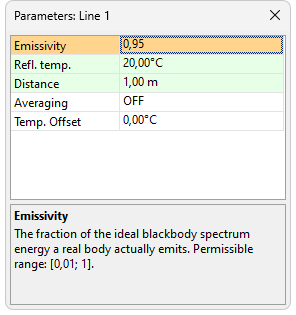
You can also double-click an image or measurement object to open its parameters dialog.
Note: A measurement object that does not have its own temperature parameters inherits them from the image. When an image parameter is changed, the corresponding inherited value is updated automatically. However, values set directly for an object are not affected. A single quotation mark before an object name indicates that the object has its own temperature parameters.
|
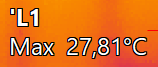
The row below the infrared image shows its most important temperature-calculation parameters.

Parameter sets
Availability: version 2024, Professional and Ultimate editions
Use parameter sets to save reusable combinations of temperature-calculation parameters and apply them wherever the same conditions apply. Parameter sets help you use consistent parameters across images and measurement objects.
A parameter set contains only temperature-calculation parameters. It does not contain Averaging or Temp. Offset settings.
Create and edit parameter sets
1.Open the parameters dialog for an image or measurement object whose values you want to use as the starting point. 2.Click the ellipsis button. 3.Select Edit Parameter Sets .... 4.Click Add. 5.Enter a name for the set. 6.Click OK. 7.Edit the new set's parameter values. 8.Click OK to save the parameter sets. |
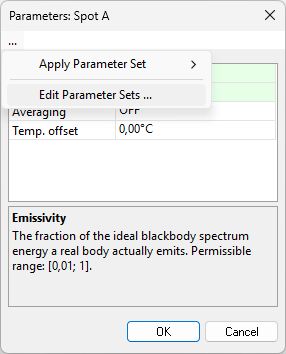
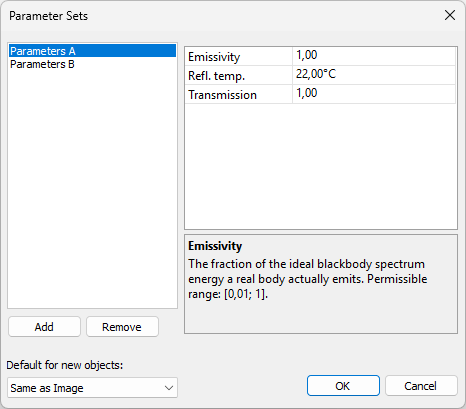
A new set starts with the temperature-calculation parameters of the image or measurement object whose parameters dialog you opened. Select a set in the Parameter Sets dialog to review or change its values. Click Remove to delete the selected set.
Apply a parameter set
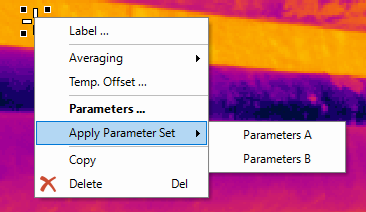
To apply a parameter set to an image:
1.Right-click the image outside any measurement object.
2.Select Apply Parameter Set.
3.Select the parameter set.
To apply a parameter set to measurement objects:
1.Select the measurement objects.
2.Right-click one of the selected objects.
3.Select Apply Parameter Set.
4.Select the parameter set.
Set the default for new objects
In the Parameter Sets dialog, select a set from the Default for new objects: list. IRT Cronista automatically applies that set when you create a measurement object, including on another image. Select Same as Image if new objects should inherit the parameters of their image.
Averaging
Use spatial averaging to reduce the effect of noise at individual pixels. IRT Cronista calculates each measurement value from a 3x3 or 5x5 area around the pixel.
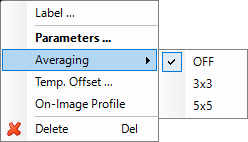
Right-click a measurement object, point to Averaging, and select 3x3 or 5x5. Select OFF to disable averaging.
Note: Averaging applies only to measurement objects, not to the entire image. |
Temperature offset
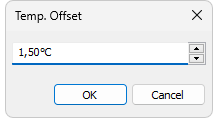
Temperature offset adds a positive or negative value to a measurement object's calculated temperature. Right-click the object, select Temp. Offset ..., and enter the offset.
Properties window
The Properties window shows the active measurement object's properties. When no measurement object is active, it shows the focused image's properties.
The left image below shows measurement-object properties. The right image shows image properties. To display image properties, click an area of the focused image that contains no measurement object. The available properties depend on the object type and camera model.
|
|
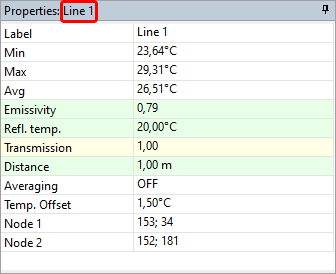
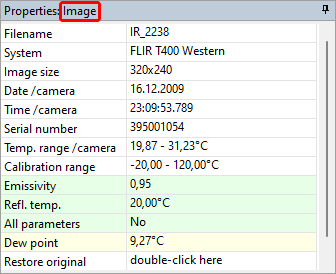
Image properties display information stored with the image. Read-only properties can include image size, temperature range, calibration range, and camera serial number. Editable properties can include date, time, reflected temperature, atmospheric temperature, emissivity, and humidity.
To restore the image parameters recorded by the camera, double-click Restore original in the image-properties list.
Measurement-object properties can include position, line or area nodes, spot temperature, and maximum, minimum, or average temperatures. The available properties depend on the object type.
Changing a spot's position moves the spot. Changing a line or area node moves that endpoint.