Use the built-in print commands to print infrared images and their available analysis information without creating a Word report. The page layout and included information depend on the current mode:
§Organizer mode: Prints a compact overview with several infrared images on each page. Each item includes its filename, temperature scale, visible measurement objects, and any displayed infrared/visual fusion.
§Analyzer mode: Prints one infrared image per page with a detailed layout that can include image information, measurement objects, the temperature scale, diagrams, a linked visual image, notations, and infrared/visual fusion.
Images are printed in the current sort order. When the print scope includes an image stack, each image in the stack is printed.
Set up the printer
Select File > Print Setup ... to choose the printer, paper size, and orientation. In Organizer mode, these settings determine how many images fit on each page.
Preview and print
Each print command opens a preview before printing. Use it to check the page layout and the images included in the print job.
Use the commands at the top of the preview window:

§Select Print... to open the system Print dialog.
§Select Next Page to view the next page. The command is unavailable on the final page.
§Select Prev Page to view the preceding page. The command is unavailable on the first page.
§Select Two Page to view two pages side by side. The command changes to One Page in two-page view.
§Select Zoom In or click the page with the magnifier pointer to enlarge the preview.
§Select Zoom Out to reduce the preview.
§Select Close to return to IRT Cronista without printing.
Print in Organizer mode
To print all infrared images in the current folder, select File > Print All ....
To print only selected images:
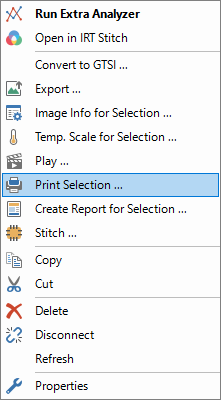
1.Select the infrared images to print.
2.Right-click one of the selected images.
3.Select Print Selection ....
Print in Analyzer mode
To print all infrared images in the current folder, select File > Print All ....
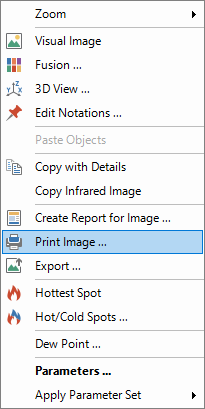
To print one infrared image, right-click it in the Analysis view and select Print Image ....
To print selected images:
1.Select the infrared images in the Image Thumbnails window.
2.Right-click one of the selected images.
3.Select Print Selection ....