Use dew-point analysis to identify surfaces where condensation may occur. Dew point is the temperature at which water vapor can condense under the specified atmospheric conditions. A surface at or below this temperature is at risk of condensation.
Open the Dew Point dialog
1.Click the infrared image to give it focus.
2.Select Analysis > Dew Point.
The Dew Point dialog uses the Atmosphere temp. and Rel. humidity values stored in the focused image's properties. Replace these values with measurements that represent the conditions at the inspected surface when available.
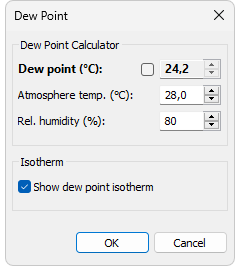
Calculate the dew point from atmospheric conditions
1.Clear the check box beside Dew point.
2.Enter the air temperature in Atmosphere temp..
3.Enter the relative humidity percentage in Rel. humidity.
IRT Cronista recalculates Dew point whenever either input changes.
Note: These inputs are image properties. Depending on the camera format and atmospheric-correction mode, changing them can also affect calculated image temperatures. |
Enter a known dew-point temperature
1.Select the check box beside Dew point.
2.Enter the known dew-point temperature in Dew point.
Selecting this check box disables Atmosphere temp. and Rel. humidity because the program no longer calculates the dew point from those values.
Highlight potential condensation areas
The Show dew point isotherm check box is selected when the dialog opens. The isotherm recolors image temperatures at or below the dew point with a purple-to-green band and traces the dew-point boundary in green. Clear the check box to hide this highlighting.
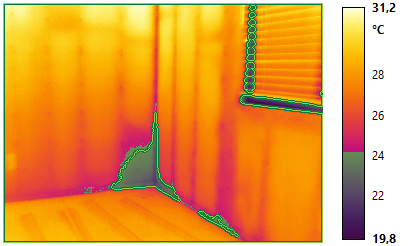
Click OK to save the values and isotherm setting with the focused image. Click Cancel to restore the settings that were in effect before you opened the dialog.
Important: The dew-point isotherm identifies temperatures associated with possible condensation. It does not confirm that moisture is present. |