Document properties store information that applies to the entire report rather than to one infrared image. Examples include the customer, site, report title, thermographer, and report date. Insert a property in one or more places as a document-property field; every field assigned to that property displays the same value.
Define properties in a report template
Define the properties before inserting their fields. Use clear property names that tell the report author what information to enter.
1.Open the report template in Word.
2.On the Thermo Reports tab, select Document Properties.
3.Select Add.
4.Enter a unique property name.
5.Select OK.
6.Edit the property's Value when the template should supply a default value.
7.Use the up and down buttons to arrange the properties in the order in which users should complete them.
8.Select OK.
9.Save the report template.
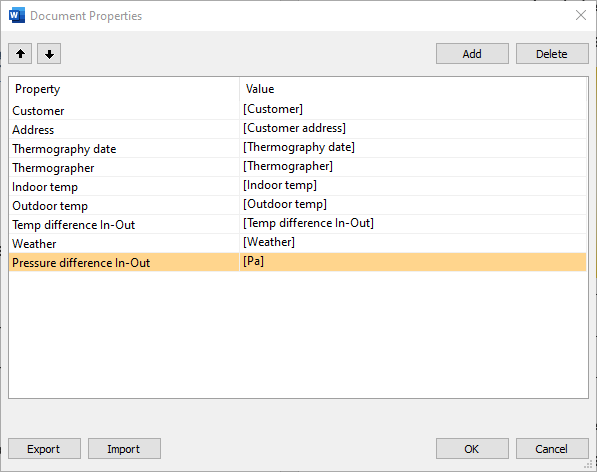
A new property initially uses its name in square brackets as the value, for example, [Customer]. Keep this prompt when the user must enter a value for each report. Replace it with a default value when the information is normally the same.
Important: Deleting a document property does not delete its fields. Remove or reassign those fields before deleting the property. |
Insert a document-property field
A document-property field is not linked to an infrared image and can be placed in any report section.
1.Place the cursor where you want the property value to appear.
2.On the Thermo Reports tab, select the arrow on Field.
3.Select Insert Document Property Field.
4.Select the property under Document property name.
5.Select OK.
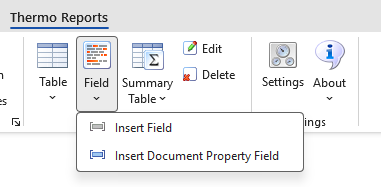
You can type a new name in the Document Property Field dialog to create a property while inserting its field. Defining properties first is recommended because it lets you review their names, values, and order together.
To assign an existing document-property field to a different property, select the field and then select Edit on the Thermo Reports tab.
Enter values in a generated report
If a template contains document properties, the Document Properties dialog opens after report generation. Enter the values required for that report, and then select OK. All document-property fields update to display the new values.
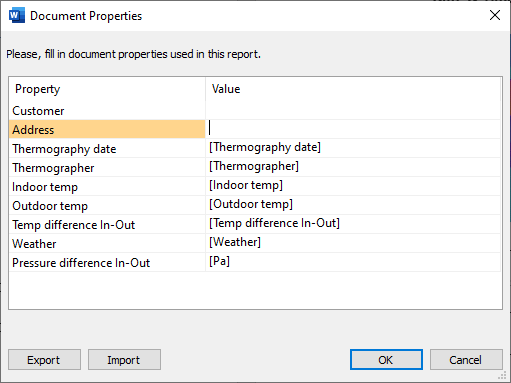
To change the values later, select Document Properties in the Template Data group on the Thermo Reports tab.
Reuse property names and values
Select Export in the Document Properties dialog to save the property names and current values in a text file. Select Import to add properties from such a file and update matching values. This is useful when several templates or reports use the same report-level information.