Use Sequence Player to review recorded infrared sequence files as thermal video or to display selected infrared images as a slide show. Each frame remains radiometric, so you can read temperatures and adjust the temperature scale during playback.
Play an infrared sequence
1.Double-click the sequence file, such as a file with the .IRS extension.
2.In Sequence Player, select Play forward.
To play several sequence files consecutively, select the files and then select Tools > Play .... You can also right-click one of the selected files and select Play ....
Play an image slide show
Select consecutive images with Shift, select nonconsecutive images with Ctrl, or press Ctrl+A to select all items in the folder.
1.Select the infrared images to include.
2.Select Tools > Play ....
3.In Sequence Player, select Play forward.
You can also select Play ... from the context menu. A playback selection can contain both individual infrared images and sequence files.
Use Sequence Player
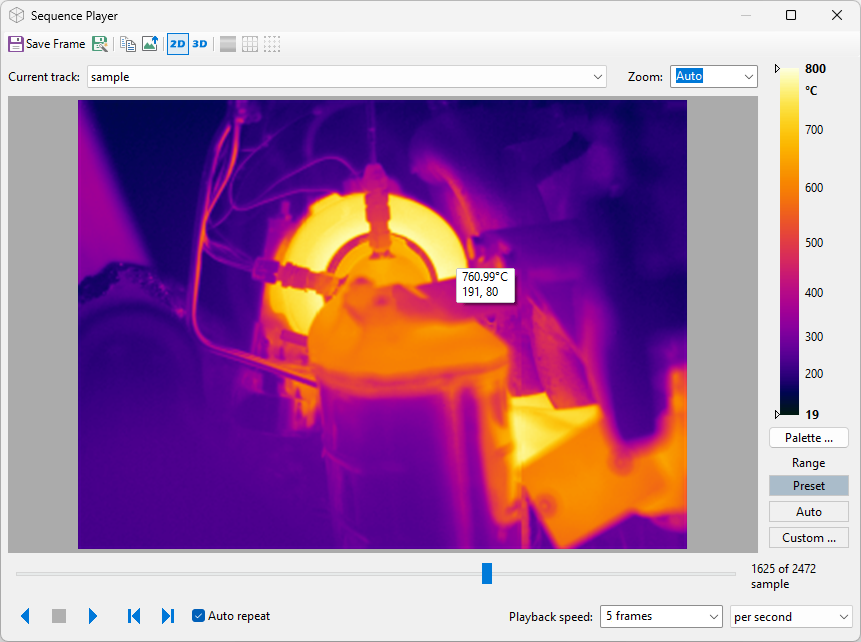
Move the pointer over the image to display the temperature at that point.
The player has its own temperature-scale controls. The selected palette applies throughout playback. Auto range adjusts as the frames change; Custom ... range keeps fixed limits. Use a custom range when the same color must represent the same temperature in every frame. See Selecting temperature span and palette.
Use the Zoom list to resize the 2D image. Under Playback speed, select As recorded or specify either frames per second or the delay between frames.


Playback controls
Use the controls at the lower left of the Sequence Player window:
|
Play forward. |
|
Play backward. |
|
Stop playback and return to the first frame of the current track. |
|
Go to the next frame. |
|
Go to the previous frame. |


During playback, the button for the active direction changes to Pause. Select it to pause on the current frame.
When the selection contains multiple tracks, use the Current track list to move between them. A sequence file is a separate track; selected individual images are grouped for slide-show playback.
Select the Auto repeat check box to continue playback after reaching the first or final frame.
Drag the slider to move to a frame in the current track. The frame position, frame count, and image or track name appear to the right of the slider.

Save or copy a frame
For a frame from a sequence file, select Save Frame to save it as a separate analyzed infrared image beside the source sequence. The saved image uses the temperature range currently displayed in the player.
Select Copy to copy the current 2D or 3D view to the Clipboard as a bitmap.
When resolution enhancement is available and the sequence contains enough frames, you can also create a higher-resolution image around the current frame. See Enhancing image resolution.
View frames in 3D
Sequence Player displays frames in 2D by default. Use the toolbar buttons to switch between 2D and 3D.

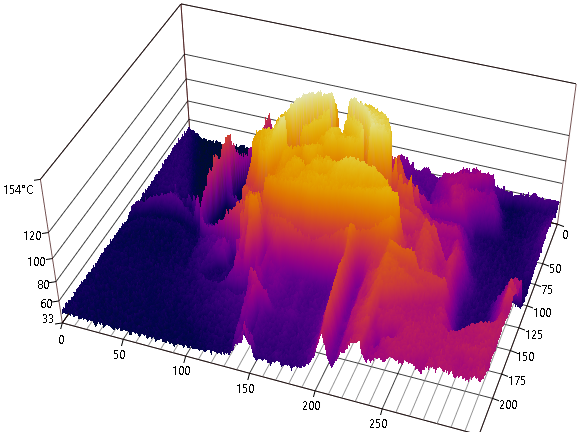
Select one of the following 3D display modes:
|
Display the image as a 3D surface. |
|
Display the image as a 3D lattice. |
|
Display the image as 3D dots. |


The Zoom control is unavailable in 3D. Resize the Sequence Player window or use the mouse wheel to change the size of the 3D model.
Export thermal video to AVI

AVI export converts the current track to a non-radiometric video using the current display mode, palette, and temperature range. The exported video does not retain temperature data. If the player contains several tracks, select the one to export before starting.
1.Select the required track in the Current track list.
2.Select Export ... on the toolbar.
3.Enter the filename.
4.Select the destination folder.
5.Select Save.
6.Enter the output speed in frames per second.
7.Select OK.