Unlink images to stop treating an infrared image and a visual image as a pair. You can unlink one or more pairs, for example, before linking an infrared image to the correct visual image.
To unlink images:
1.Switch to Organizer mode.
2.Open the folder that contains the linked images.
3.Select the infrared image for each pair you want to unlink.
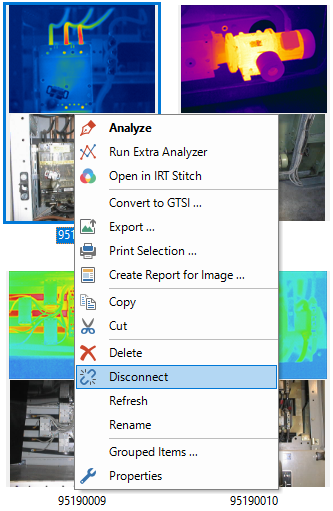
4.Right-click one of the selected images.
5.Select Disconnect from the shortcut menu.
Alternatively, press Ctrl+D after selecting the images.
Select multiple pairs
To select a consecutive range, click the first infrared image, then hold Shift and click the last infrared image. To select individual images, hold Ctrl and click each infrared image you want to include.
What happens to the files
For pairs stored as separate files, unlinking changes file names as needed to remove the link. Both images remain in the same folder.
For a GTSI image that supports unlinking, Disconnect saves the embedded visual image as a separate JPEG file in the same folder and removes it from the GTSI file.