Availability: Ultimate edition
Image stitching combines two or more overlapping infrared or visual images into a larger composite image. Use it to document a scene or object that does not fit into one camera frame. A stitched infrared image remains radiometric and can be analyzed in IRT Cronista.
Prepare the source images
Capture adjacent views with recognizable details in their overlapping areas. Aim for 40-50% overlap between adjacent images. Stitching may fail when the scene lacks distinct features that IRT Cronista can use to align the images.
For infrared images, use a Custom range with identical upper and lower limits for all source images. Different limits can reduce the quality of feature matching. Apply the range to the folder with Same Range, or apply it only to the selected images with Temp. Scale for Selection. See Same Range and Same Palette options and Changing range and palette for selected images.
Stitch images
1.Switch to Organizer mode.
2.Select at least two infrared images or at least two visual images.
3.Select Tools > Stitch ....
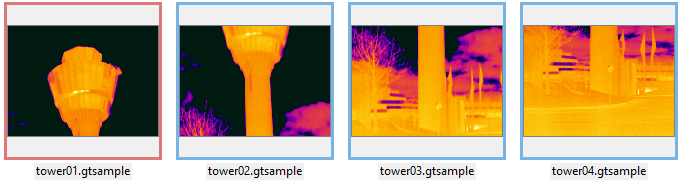
You can also right-click one of the selected images and select Stitch ....
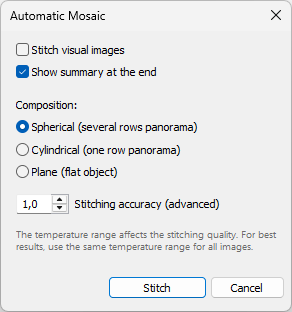
4.Select Stitch visual images if you want to stitch available visual images instead of infrared images.
5.Select Show summary at the end if you want IRT Cronista to open a detailed stitching log.
6.Select a Composition option.
7.Adjust Stitching accuracy (advanced) only if the default setting does not produce a satisfactory result.
8.Select Stitch.
Choose stitching options
§Stitch visual images: When both infrared and visual source images are available, stitch the visual images instead of the infrared images. The option requires at least two separate or linked visual-image files; embedded visual images are not used. If the selection contains only visual images, the option is selected automatically.
§Spherical (several rows panorama): Use for a panorama captured in multiple rows.
§Cylindrical (one row panorama): Use for a panorama captured in one horizontal row.
§Plane (flat object): Use for a flat surface or object.
§Stitching accuracy (advanced): Keep the default value for most image sets. Higher values require stronger feature matches; lower values accept weaker matches.
Stitched results
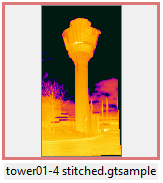
IRT Cronista saves the stitched image in the source folder and focuses the new file. Infrared results are saved as radiometric images; visual results are saved as JPEG images. The source images are not changed.
If the selected images form more than one sufficiently large matching group, IRT Cronista creates a separate stitched image for each group.
Large image sets: Accurate GPS information is required when stitching drone images. IRT Cronista displays a warning when GPS information is missing or inconsistent. Because the stitching algorithm is designed primarily for panoramas, it may not be able to stitch drone image sets. To create an orthomosaic, export the images as Radiometric TIFF files and process them in specialized photogrammetry software such as Pix4D or WebODM. See Exporting infrared images to other formats. |